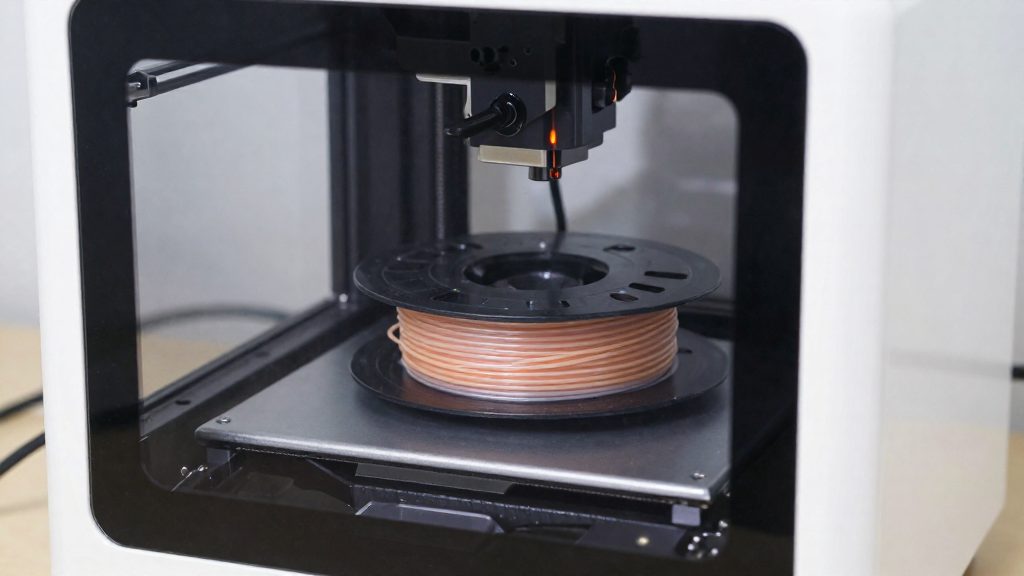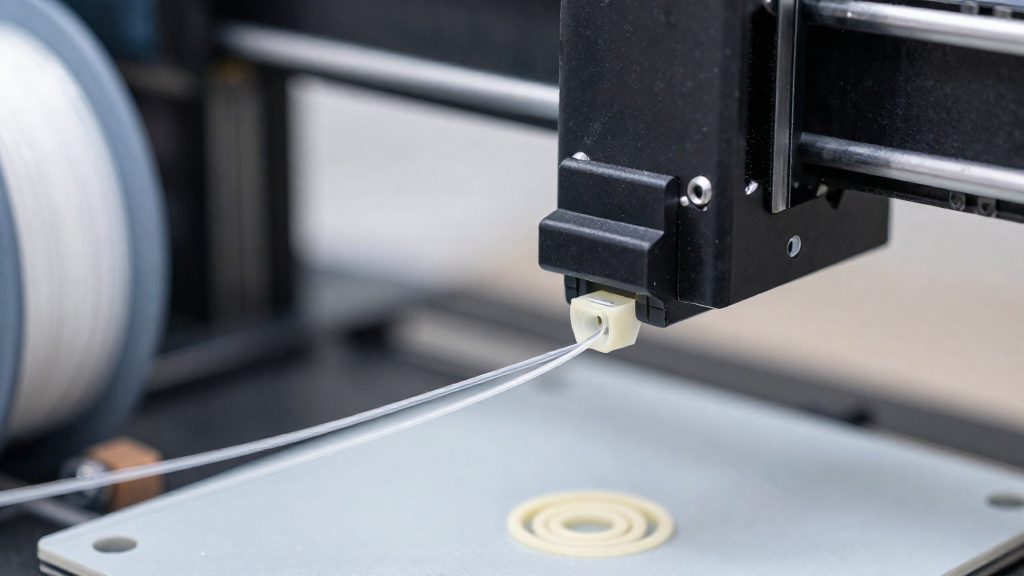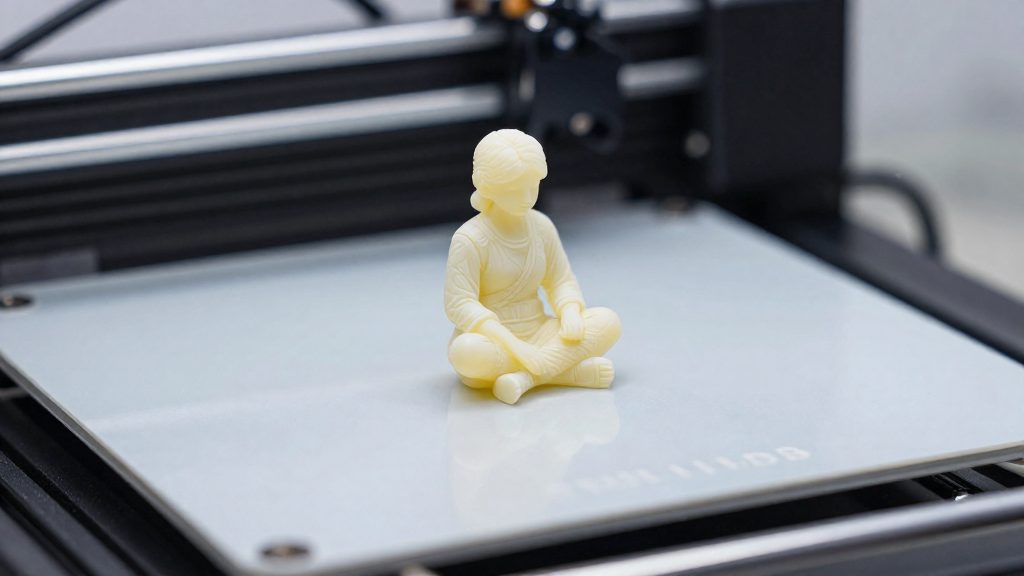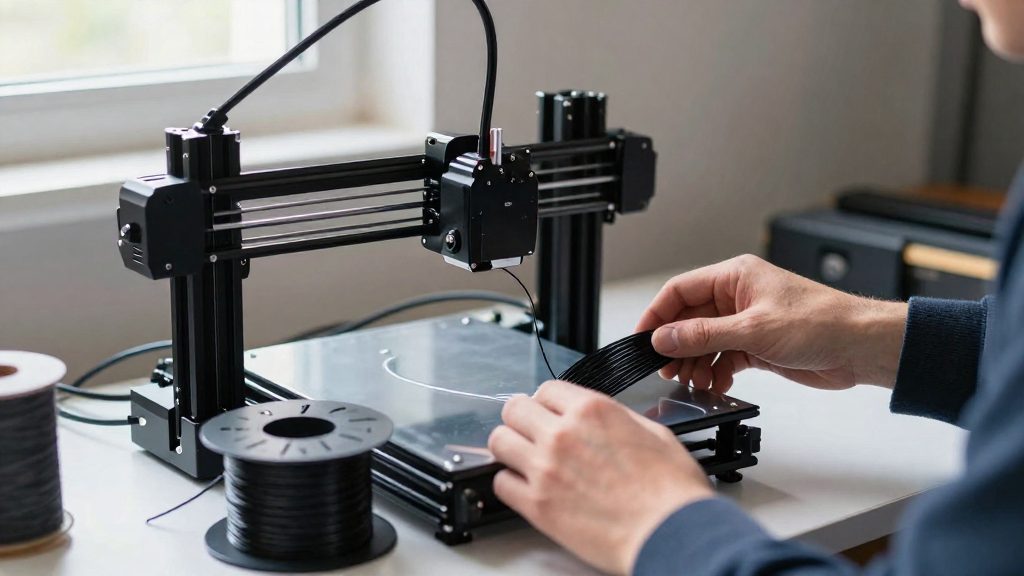
There is no single best FDM printer for TPU that buying guides agree on. The guides recommend different models, and none uses a standardized comparison that would let you rank printers on flexible-filament performance. A more reliable approach is to shortlist printers against three criteria: extruder type, the TPU hardness you plan to print, and your budget. Each criterion can be checked against manufacturer documentation.
Which FDM Printer Is Best for TPU?
No Single TPU Printer Is Established
Buying guides for flexible filament name different machines, including the Bambu Lab A1, Bambu Lab P1S, Prusa MK4S and Creality Ender-3 V3 SE. They do not apply a shared test method. The buying guides discussed here do not provide a corroborated, standardized comparison of flexible-filament performance, so their rankings cannot be compared directly. Some of their claims are also not supported by manufacturer documentation. The claims that Bowden systems cannot print flexible filament, and that an enclosure guarantees substantially tighter TPU dimensional accuracy, are not corroborated. Automatic TPU identification and AMS handling on the P1S are likewise unconfirmed.
Shortlisting Printers by Extruder, Hardness and Budget
Start with the direct extruder. Printers without a documented direct extruder should be checked more carefully before you commit to a flexible-filament workflow.
Next, match the TPU hardness to the printer’s documented compatibility.
Finally, set the budget by comparing current retail prices at the time of purchase, since the prices of the four models named above were not verified for this article.
| Criterion | What to check | Documented example |
|---|---|---|
| Extruder | Manufacturer states a direct extruder | Ender-3 V3 SE: direct extruder |
| Hardness | Shore rating on the spool label versus documented compatibility | Ender-3 V3 SE: TPU 95A |
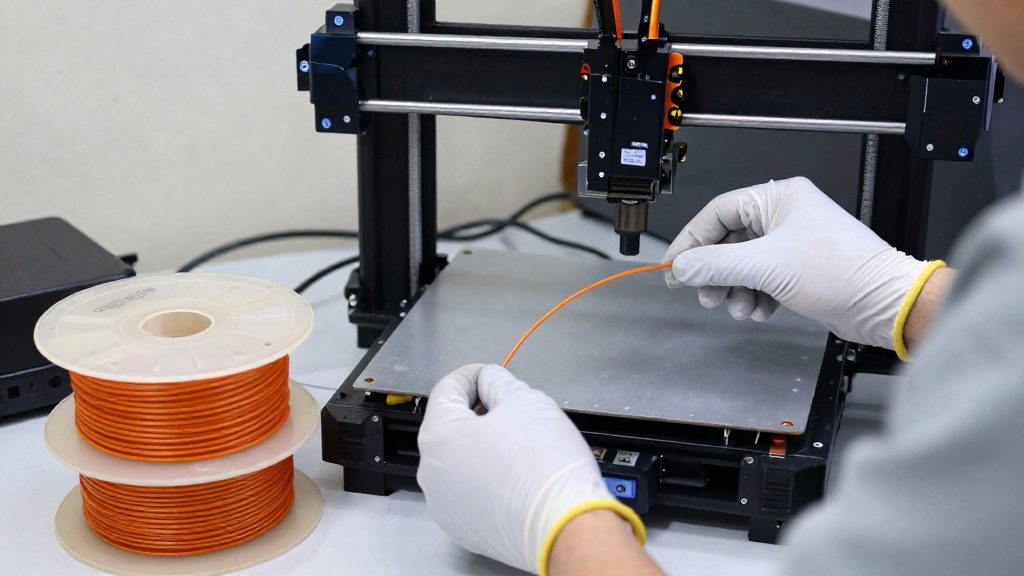
Check Nozzle Specifications and TPU Compatibility
For TPU, three spec-sheet entries matter most: the nozzle, the maximum nozzle temperature, and the filament compatibility list. The Ender-3 V3 SE from Creality illustrates how to read them:
| Specification | Ender-3 V3 SE (per Creality) |
|---|---|
| Standard nozzle | 0.4 mm brass |
| Listed maximum nozzle temperature | 260°C |
| Listed flexible filament compatibility | TPU 95A |
The 260°C figure is a hardware ceiling listed by the manufacturer, not a recommended print temperature. Use it only to confirm the hot end can reach the range your filament requires.
Does Direct Drive Matter for TPU?
Direct drive and Bowden are two ways of feeding filament to the hotend. In a direct drive setup, the extruder sits on the moving print head and feeds filament into the hotend over a shorter feed path. In a Bowden setup, the motor stays on the frame and pushes filament through a PTFE tube, which makes the filament path longer. For flexible filament, that longer path matters because a soft strand has more room to buckle or bunch up before it reaches the hotend.
Creality specifies a direct extruder for the Ender-3 V3 SE and lists compatibility with TPU 95A (Creality). That is the documented pairing: a direct extruder with a 95A grade.
Match Your Printer to TPU Hardness
TPU is sold in several hardness grades, and the Shore hardness number on the spool is the first thing to check before choosing a printer. According to Prusa Research, softer flexible filaments are generally harder to print than firmer ones, so a soft grade asks more of the machine than a firm one. The practical goal is to match the grade to what your printer’s extruder and hotend can handle, then confirm the setup on the manufacturer’s documentation for that specific filament.
Why Softer TPU Is Harder to Print
Softer grades bend more easily inside the extruder path, which makes steady feeding harder to maintain. Firmer grades tend to be more forgiving, so they are a sensible starting point when you are new to flexible filament.
Checking Printer Compatibility
Compatibility is grade-specific, so read the filament and printer listings closely:
- Ender-3 V3 SE: Standard 0.4 mm brass nozzle and a listed maximum nozzle temperature of 260°C.
- Softer grades: The documented TPU 95A compatibility does not establish that the printer handles softer grades. Check the printer’s manufacturer documentation before buying a softer filament for it.
Matching Hardness to Your Setup
Use this approach to match a grade to your hardware:
- Find the printer’s documented TPU compatibility, including the stated hardness grade.
- Start with a firmer grade if your printer’s documentation lists only one TPU grade.
- Move to a softer grade only when the manufacturer’s documentation lists it for your printer.
- Follow the filament maker’s temperature and speed guidance for that specific product.
Tune Speed, Temperature, and Retraction
Prusa Research’s flexible-material guide recommends a nozzle temperature of 230–245°C for flexible filaments, with the exact value depending on filament hardness and brand. The same guide gives about 20 mm/s as a typical print speed, with a recommended maximum of about 30–40 mm/s. These values are specific to that guide and are not universal settings for every TPU formulation, so use them as a starting point and adjust from there.
| Setting | Value (Prusa guide) | Condition |
|---|---|---|
| Nozzle temperature | 230–245°C | Depends on hardness and brand |
| Print speed | About 20 mm/s | Typical flexible-filament speed |
| Maximum speed | About 30–40 mm/s | Recommended upper limit |
For retraction, Prusa advises reducing it. Lower retraction reduces the risk of the nozzle clogging and of the filament tangling inside the extruder, both common problems with flexible material. In your slicer profile, lower the retraction distance and speed in small steps, then check a test print for clogs or tangles before changing more values.
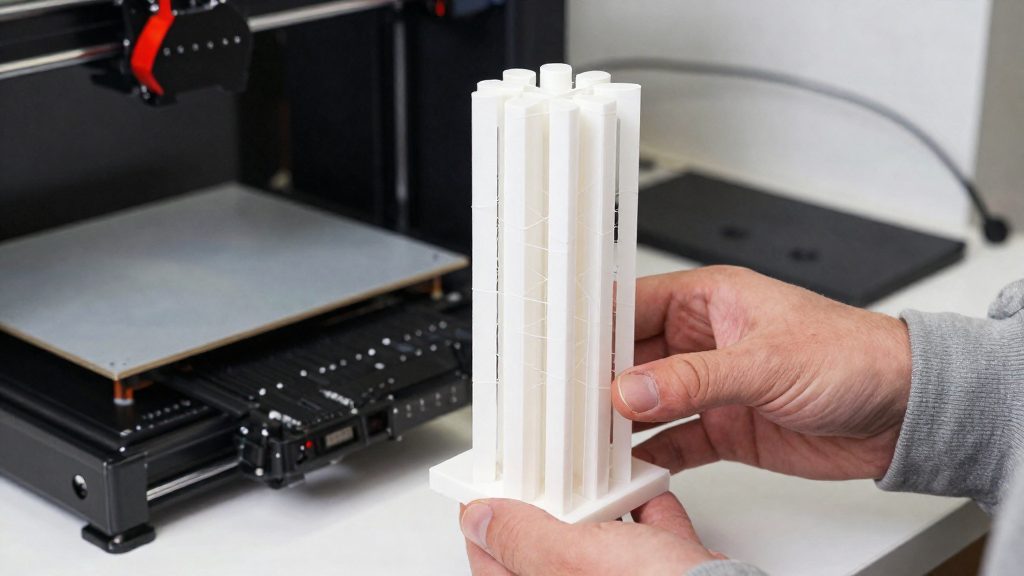
Keep Flexible Filament Dry
TPU absorbs moisture from the air. Prusa notes that flexible filaments take up water and recommends keeping them dry, because moisture makes printing more difficult (Prusa Research). Wet TPU tends to produce inconsistent extrusion, so the printed surface and dimensions can vary from one print to the next, even when the slicer profile stays the same.
Store spools sealed when they are not in use, and keep the sealed spool in a dry environment between sessions.
- Sealed storage: Keep the spool in an airtight container or a sealed bag when it is not on the printer.
- Dry environment: Store the sealed spool in a dry place rather than in a humid room or near an open window.
- Consistent feed: Keeping the spool dry supports steady extrusion, which Prusa links to fewer printing difficulties.
Prevent TPU Jams and Bed Damage
Very soft TPU can damage the PEI sheet when a part is removed, and flexible filament can tangle at the extruder gears. The steps below cover bed protection and clearing jams. Retraction tuning, moisture control and extruder layout are covered elsewhere in this guide.
Protect the PEI Sheet
Some very soft flexible filaments can bond to PEI strongly enough to damage the surface when the part is removed. Prusa Research recommends a glue-stick separation layer where appropriate:
- Apply a thin, even layer of glue stick to the PEI sheet before printing.
- On smooth and satin sheets, use the separation layer that Prusa recommends for flexible filament.
- On Prusa’s textured sheet, follow the different guidance Prusa gives for that sheet rather than applying the same layer.
Clear Extruder Clogs and Tangles
Flexible filament can tangle around the extruder gears, and it can also cause spool-feed problems or nozzle blockages. Identify where the jam is, then follow the printer manufacturer’s clearing procedure. When a jam happens:
- Stop the print and unload the filament.
- Check the spool for loops or kinks and feed the filament slowly through a clear path.
- If the filament stops moving, stop feeding it and follow the printer manufacturer’s clearing procedure for the identified jam location. Push filament manually only when that procedure instructs you to do so, using its specified temperature and keeping clear of the hot nozzle and heater block.
- Cut away any damaged or tangled section before reloading.
Use the manufacturer’s temperature for your specific TPU when clearing a clog.