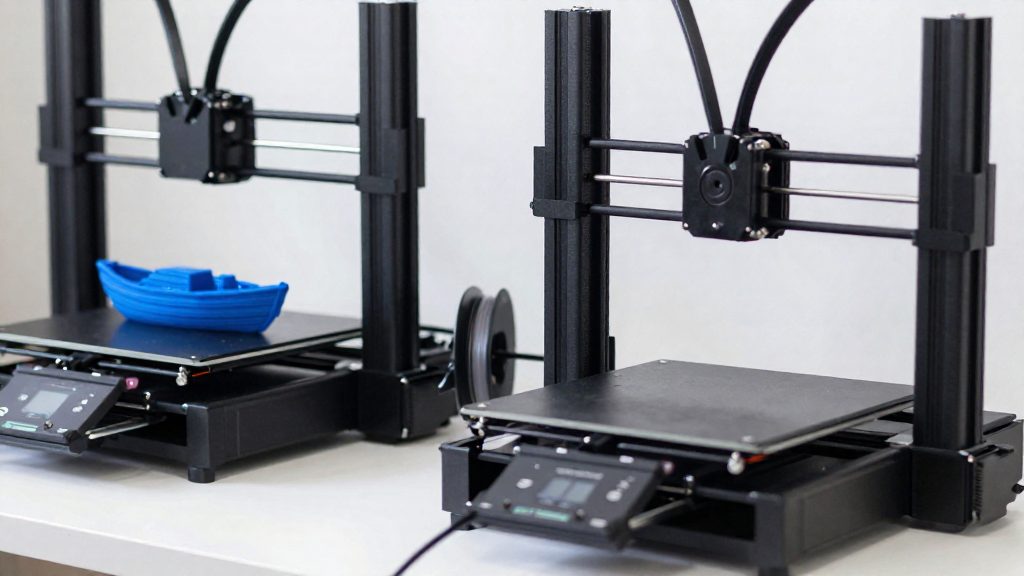
Cura is the easier starting point for a first-time user who wants a successful first print quickly. Libe.net (2026) is the source in this comparison that explicitly recommends a slicer for newcomers, and it names Cura as a simple, solid start with good defaults. SelfCAD (2024) also describes Cura’s interface as beginner-friendly. PrusaSlicer is the better fit if you own a Prusa printer, since its profile library is built around that hardware.
Which slicer should a beginner pick?
Cura for a simple first slice
Libe.net (2026) states that Cura is the only slicer in its comparison that the author explicitly recommends to newcomers, citing good defaults. In practice, that means a first slice can start from settings the software already provides.
PrusaSlicer for Prusa hardware
If you own a Prusa machine and use one of its listed filaments, a matching profile gives you a tested configuration to start from rather than building one yourself.
Platform and account checks
- Both slicers run locally on Windows, macOS and Linux, so your operating system does not decide the choice.
- The official sources consulted do not specify whether Cura requires an account.
- PrusaSlicer requires no account to start printing.
Is Cura easier to learn than PrusaSlicer?
Cura is generally described as the easier of the two for a first-time user. SelfCAD (2024) rates Cura as having a straightforward, beginner-friendly interface and rates PrusaSlicer as having a steeper learning curve for beginners. For someone with no slicing experience, that means fewer unfamiliar settings to understand before the first print, and a shorter path from installing the software to a usable G-code file.
The difference is about how quickly a newcomer can get oriented, not about print quality. The choice comes down to how much interface complexity a beginner is willing to absorb.
Cura’s advantage also extends past the first session. SelfCAD notes its plugin library is large, which extends the feature set beyond the built-in tools. The sources consulted do not describe a plugin system for PrusaSlicer, and its Simple, Advanced and Expert modes reveal its tools progressively.
| Learning-related aspect | Cura | PrusaSlicer |
|---|---|---|
| Interface for beginners (SelfCAD, 2024) | Straightforward, beginner-friendly | Steeper learning curve |
| Feature expansion | Large plugin library | Built-in tools |
How do the interfaces and modes differ?
PrusaSlicer and Cura present different structures to a first-time user. PrusaSlicer, from Prusa Research, is ready to use as soon as it is installed. Its settings are organised into three levels, Simple, Advanced and Expert, and a beginner can start with the defaults and unlock more tools later. The official sources consulted do not specify which controls each level exposes.
Cura gives a newcomer a single layout to learn first. The sources consulted do not describe a mode system for Cura, so the default view is the starting point.
PrusaSlicer: three levels, unlocked over time
The three levels let you postpone advanced options until you need them. Starting with defaults means the slicer produces a usable G-code file without manual changes, which suits a first print. When a result needs adjustment, you move to a higher level to reach the additional tools. The sources do not specify which controls each level exposes, but you do not need to understand every option before printing.
Cura: one straightforward layout
Cura’s beginner-friendly layout keeps the workflow in one view. Its plugin library and 14 infill patterns are described by SelfCAD (2024). The sources consulted give no further detail on how these options are arranged on screen.
| Aspect | PrusaSlicer | Cura |
|---|---|---|
| Version reviewed | 2.9.6 | 5.13.0 |
| Account required | No | Not stated in the sources |
| Mode structure | Simple, Advanced, Expert | No mode system described |
| Beginner approach | Start with defaults, unlock tools later | Straightforward, beginner-friendly layout |
Printer profiles: which slicer fits your machine?
The first practical check is whether a slicer ships a ready-made profile for your printer. According to Prusa Research (2026), PrusaSlicer ships 200+ tested profiles covering every Prusa printer and filament, so a Prusa owner can select the exact model and start from settings the manufacturer has tested. Cura takes a broader approach: SelfCAD (2024) describes it as supporting many printers beyond UltiMaker. The official sources consulted do not give a count of Cura profiles.
Connectivity is the second check, especially if you control the printer from a computer or a network. PrusaSlicer integrates with Prusa Connect, Klipper and OctoPrint. The sources describe OctoPrint integration for Cura and do not mention Klipper or Prusa Connect, so if your setup relies on those, PrusaSlicer is the option the sources describe.
To run the check before you install either slicer:
- Open the printer selection menu in each slicer and confirm that your exact model appears, not just the brand.
- Confirm that a profile exists for the filament you plan to use.
- Note how your printer receives files: direct USB or SD card, OctoPrint, Klipper, or Prusa Connect.
- Compare your result with the versions in the reviews consulted, PrusaSlicer 2.9.6 and Cura 5.13.0, and note your installed version.
Supports and advanced features compared
PrusaSlicer has a set of support and modelling tools that the sources describe in more detail than Cura’s. It generates organic supports automatically and also offers manual support painting, which lets you place supports only on the overhangs that need them instead of across the whole model. The sources consulted do not describe an equivalent support-painting function in Cura.
PrusaSlicer also includes tools for preparing models inside the slicer: built-in shapes, text embossing, and cutting at any angle. SelfCAD (2024) lists these alongside paint-on supports and multi-material support as features that set PrusaSlicer apart.
Cura’s distinctive advanced feature is its range of infill patterns. SelfCAD (2024) counts 14 of them. The sources consulted do not specify how many infill patterns PrusaSlicer offers.
| Feature | Slicer | Detail |
|---|---|---|
| Automatic organic supports | PrusaSlicer | Generated automatically |
| Support painting | PrusaSlicer | Manual, applied to chosen areas |
| Built-in shapes | PrusaSlicer | Added inside the slicer |
| Text embossing | PrusaSlicer | Adds text to the model |
| Cutting at any angle | PrusaSlicer | Angled model cuts |
| Infill patterns | Cura | 14 patterns |
| Plugin library | Cura | Large, extends default functions |
libe.net (2026) names PrusaSlicer’s finer control of infill and supports as its decisive advantage over Cura, which makes the infill and support settings the main areas to compare when choosing between the two.
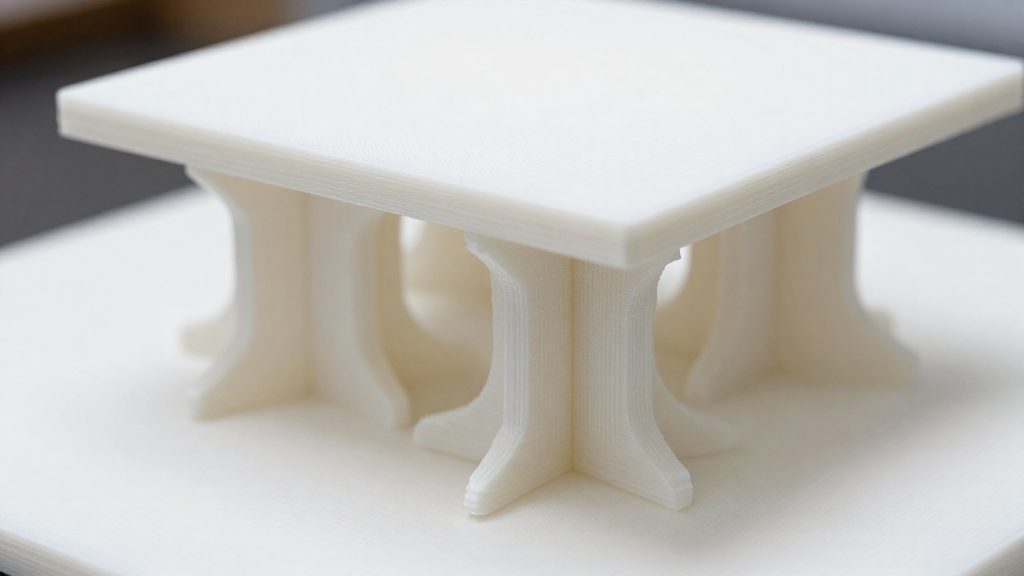
Do PrusaSlicer and Cura work with resin printers?
Prusa Research states that PrusaSlicer works with any FDM or resin printer (Prusa Research, 2026). A 2024 comparison by SelfCAD (2024-12-08) reads the situation differently, saying that PrusaSlicer’s resin support is mainly within the Prusa ecosystem. The two sources therefore disagree on how far PrusaSlicer’s resin support reaches beyond Prusa’s own hardware.
For Cura, the official sources consulted do not specify whether it supports resin printers, so no claim can be made either way from them. SelfCAD describes Cura as a simple, beginner-friendly slicer with good defaults, but its comparison does not address resin printing.
In practice, this means the answer depends on your printer rather than on the slicer’s name:
- Prusa-made resin printers: Both sources are compatible with PrusaSlicer working here, since Prusa says any resin printer and SelfCAD places resin support in the Prusa ecosystem.
- Third-party resin printers: Prusa’s claim covers them, but SelfCAD’s reading suggests support may be less complete. Check the printer and resin profiles before relying on them.
- Cura with resin: No resin-specific support is confirmed by the sources consulted, so verify it against the printer manufacturer’s documentation.
Testing costs nothing beyond time.
Can I switch slicers later?
Yes. Both slicers are free and open source, so you can install the second slicer alongside the first at no cost.
The cost of switching is therefore time and rework, not money. The sources consulted do not specify whether settings transfer between slicers, so plan to check your settings and rebuild them if needed in the new slicer.
The effort depends on your printer. The sources do not say how Cura’s profile library covers a given model, so check that your printer and filament appear in Cura before you commit.
Quick verdict
For a first printer, the real trade-off is fast setup against fine control.
PrusaSlicer has a steeper learning curve according to SelfCAD (2024), but its Simple mode lets a beginner start with defaults and unlock more tools later. Cura keeps a straightforward layout with good defaults.
| Factor | Cura | PrusaSlicer |
|---|---|---|
| Starting interface | Straightforward and beginner-friendly | Steeper learning curve for beginners |
| Infill and support control | Simpler | Finer, with manual support painting |
| Settings depth | Good defaults for a first print | Three modes: Simple, Advanced, Expert |
| Printer coverage | Many printers beyond UltiMaker | 200+ tested profiles for Prusa printers and filaments |
Most beginners do not need the Expert mode on day one.
Frequently asked questions
Can I use PrusaSlicer with a printer that is not from Prusa?
Prusa Research (2026) says PrusaSlicer works with any FDM or resin printer, but SelfCAD (2024) reports that its resin support sits mainly within the Prusa ecosystem, so the two sources disagree on resin. The 200+ tested profiles are built around Prusa hardware, so a non-Prusa machine will not come with a matching profile.
Will PrusaSlicer overwhelm me with settings?
PrusaSlicer has three modes, Simple, Advanced and Expert. You can start with the defaults in Simple mode and unlock more tools as you need them. The official sources consulted do not specify which controls each mode shows.
Does PrusaSlicer give more control over supports and infill than Cura?
Yes, according to libe.net (2026), finer control of infill and supports is the decisive advantage of PrusaSlicer over Cura. Its paint-on supports and manual support painting let you place supports exactly where you need them. Cura counters with 14 infill patterns and a large plugin library, as SelfCAD (2024) notes.